
A worked example: from URL to poster
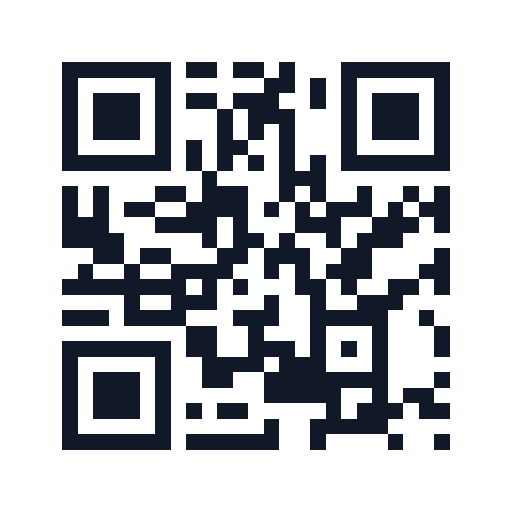
This sample encodes https://mytool0.com/ directly. It uses error correction M, margin 4, foreground #111827, and a white background. Follow the same sequence with your own destination before sending a design to print.
- Open the QR Code Generator, choose Try sample, select size 512, and generate the code. Leave the default margin and colors in place.
- Download PNG or SVG. Use SVG when the design software accepts vectors, or a PNG with enough pixels at the intended size.
- Place the code in the poster with its white border intact, then export the entire design as PNG. The sample below places the code inside a 640 × 800 poster.
- Open the QR Code Reader and choose the exported poster. Compare the decoded text with
https://mytool0.com/before opening it. - Print a proof at the intended size and test the actual phones, lighting, and viewing distances. Reading the digital file does not establish that the printed result will scan.
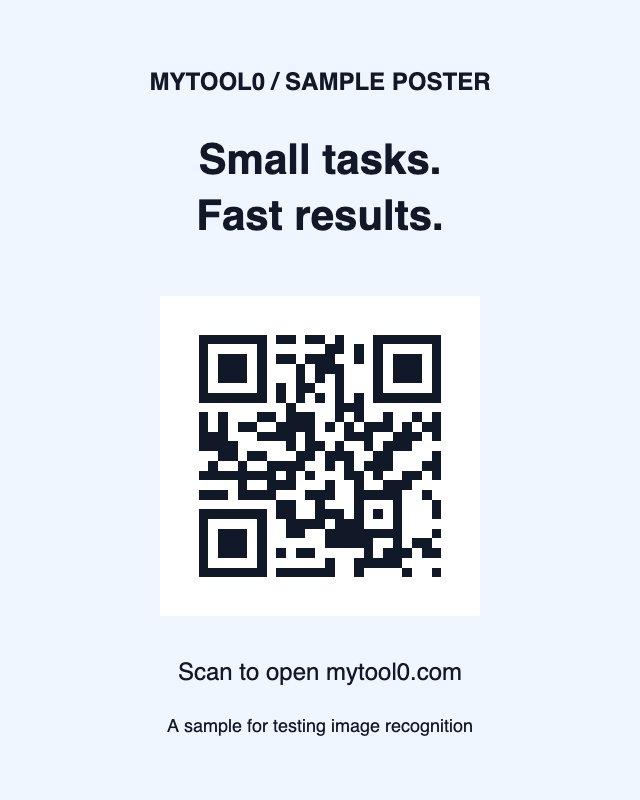
Download source PNG ·Download source SVG ·Download sample poster PNG
1. Verify the encoded destination first
Use the QR Code Generator to create the code, then scan the result before designing around it. For a URL, verify the full destination including HTTPS, path, query parameters, and redirects. A perfectly readable code that points to the wrong page is still wrong.
2. Keep strong contrast and a clear quiet zone
Dark modules on a light background remain the safest default. Decorative color choices can reduce contrast even when they look attractive at normal size. Keep clear space around the code instead of placing text, borders, or imagery immediately against its outer modules. The generator exposes margin and color controls, but the finished design can still erase that margin if it is cropped later.
3. Choose error correction for the environment
Higher error-correction levels add redundancy and can tolerate more damage, but they also make the code denser for the same content. Do not select the highest level automatically. Start with the environment: a clean digital code has different needs from a small label that may be scratched or partly obscured.
4. Reduce content before shrinking modules
Longer content generally requires a denser QR matrix. If a printed code is becoming hard to scan, shortening a URL or removing unnecessary payload text can be more effective than forcing the same matrix into a smaller physical area. Keep any shortening service itself trustworthy and stable if the code will be printed for long-term use.
5. Test the exported file, not only the preview
Download the final PNG or SVG, place it into the real design, and test that exported design. If another application resizes the raster image, useResize Image deliberately rather than relying on an unknown resampling step. Avoid adding blur, heavy compression artifacts, or effects across the modules.
6. Scan on more than one device
Test at the intended viewing distance and lighting with more than one phone or scanner when the code matters. For an image you receive from elsewhere, theQR Code Reader can also help inspect a supported QR image locally in browsers that provide the required recognition capability.
Two damaged examples to compare
These are deliberately damaged copies of the same sample: a crop missing the corner markers and a heavily blurred image. Try them in the reader, then replace them with the clear sample. They illustrate specific damage, not a universal limit for every QR code or scanner.
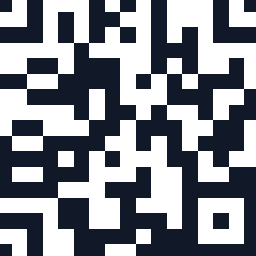

Download cropped example · Download blurred example
Final pre-publication checklist
- The decoded destination is exactly the intended text or URL.
- The foreground and background have strong contrast.
- A clear quiet zone remains after the complete design is exported.
- The code is large enough at its actual physical or on-screen size.
- The final exported or printed artifact scans on real devices.